

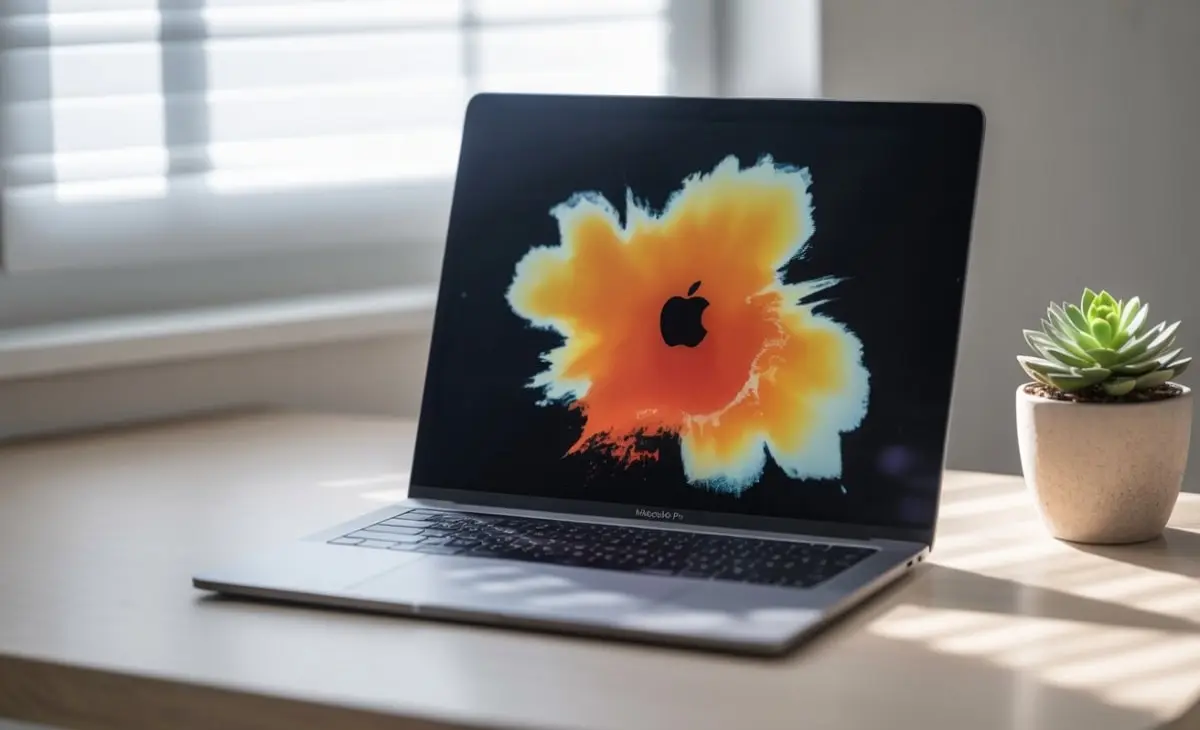

If you’ve spotted an orange smudge on macbook pro screen, it can be both confusing and worrying. What might look like a harmless mark could actually indicate a deeper problem with your laptop’s display or its internal components. Whether the discoloration is caused by heat, pressure, or screen coating damage, the key is to understand what’s happening before it gets worse.
This detailed guide explains the most common causes of orange smudges, the practical steps you can take to fix them, and how to prevent the issue from coming back.
Understanding the Orange Smudge on a MacBook Pro Screen
An orange smudge is not just a random patch of color. It often appears as a faint amber or rust-colored area that becomes more visible when the screen shows light backgrounds. Sometimes, it looks like an oil stain or reflection that doesn’t go away even after cleaning. This is a sign that the problem is likely beneath the glass layer, not just on the surface.
In most cases, the discoloration happens due to physical or chemical changes within the display’s layers — rather than a software glitch. To figure out what’s going on, it’s important to understand the root causes.
What Causes Orange Smudges on MacBook Pro Screens?
There are several hardware-related reasons behind orange or brownish marks. These can range from coating wear to backlight damage, and identifying the exact cause helps you decide whether you can fix it at home or need professional repair.
Anti-Reflective Coating Damage (Staingate)
One of the most common causes is the degradation of the anti-reflective coating on Retina MacBook Pro models. This coating, designed to reduce glare, can wear off unevenly after years of use or contact with cleaning products. The result is a pattern of orange or rainbow-colored patches that look like oily smudges.
Apple faced so many complaints about this issue that it introduced a Screen Replacement Program known informally as Staingate. If your MacBook was made between 2013 and 2017, it may qualify for a free display replacement. For newer models, however, Apple typically charges for screen replacements.
Backlight Bleeding or LED Degradation
Another common reason for orange discoloration is orange smudge on MacBook Pro screen problem screen. Over time, the LED backlight system inside your MacBook’s display can become uneven due to aging components or physical pressure. This causes certain areas to emit more light, leading to an orange or yellow patch. The problem becomes more noticeable in dark mode or when the screen shows black backgrounds.
Because this is a hardware issue, the only reliable fix is screen replacement. Once the backlight begins to fail, cleaning or software resets won’t help.
Heat Damage or Liquid Exposure
Excessive heat or accidental liquid exposure can also lead to orange stains under the screen. When heat builds up, it can oxidize or discolor the LCD layers, especially around the edges of the display. Similarly, even a small amount of liquid can seep beneath the glass and leave behind mineral residue or corrosion marks.
If you suspect this, power down your MacBook immediately, unplug it, and avoid charging. Taking it to an Apple Authorized Service Provider for an internal inspection is the safest next step. Waiting too long could cause permanent circuit or screen damage.
Pressure or Flex Damage
MacBook Pro screens are thin and flexible, which makes them vulnerable to pressure damage. If you’ve ever closed the lid with something small (like earbuds or a pen) left on the keyboard, the screen may have absorbed uneven pressure. This can permanently damage pixels and leave behind orange or dark patches that don’t fade over time.
Once LCD pixels are damaged in this way, repair is rarely possible. A full screen replacement is usually required.
Dust or Debris Beneath the Glass
Although rare, dust particles or adhesive residue trapped beneath the display can appear as orange-tinted smudges. These are usually caused by tiny air gaps or adhesive oxidation during manufacturing or after heavy use in humid environments. Fixing this requires disassembling the screen — something only a certified technician should attempt.
Quick Checks Before You Visit a Repair Center
Before assuming the worst, you can perform a few quick checks at home to rule out surface-level or software issues.
Step 1: Clean the Screen Properly
Use a soft microfiber cloth slightly dampened with a 70% isopropyl alcohol solution. Gently wipe in circular motions and let it air dry. Avoid paper towels or strong cleaners, as they can worsen coating damage.
Step 2: Take a Screenshot
Press Command + Shift + 3 to take a screenshot. If the orange area appears in the screenshot, it’s a software issue; if not, it’s hardware-related.
Step 3: Boot in Safe Mode
Restart your Mac while holding the Shift key until the login screen appears. If the smudge still shows up, that confirms it’s not caused by software.
Step 4: Connect to an External Display
If the external monitor shows no orange mark, the problem lies with your MacBook’s internal display, not the graphics card.
Software Fixes (for Rare Display Rendering Issues)
While most orange smudges are physical, occasionally a macOS display calibration or rendering issue can cause strange color tints. You can try a few quick resets before heading to a service center.
Start by resetting the NVRAM and System Management Controller (SMC). These control your MacBook’s display settings and power management. Shut down your device, then hold Option + Command + P + R for 20 seconds to reset NVRAM. For the SMC, hold Control + Option + Shift + Power for 10 seconds, then release and restart.
Also, make sure your system is running the latest version of macOS. Go to System Settings → General → Software Update. Outdated display drivers can sometimes cause color rendering bugs. Finally, check your display color profile in System Settings → Displays → Color, and reset it to “Color LCD (Default)” if it was changed.
Professional Repair and Replacement Options
If the orange smudge persists after cleaning and resets, the next step is a professional diagnosis. An Apple Store or an Authorized Service Provider can identify whether the issue stems from the screen’s coating, backlight, or LCD layer.
Apple technicians can usually replace affected displays under warranty or through AppleCare+. If you’re out of warranty, expect repair costs between $400 and $800, depending on the model. With AppleCare+, the repair fee drops to about $99.
Third-party repair centers can be a good alternative if they use OEM-quality displays and offer a warranty on their work. They often charge 30–40% less than Apple. However, always verify their reputation and ensure they don’t use low-quality replacement panels that could cause further issues.
Preventing Orange Smudges on Your MacBook Pro
Once your screen is restored, a few habits can prevent the issue from returning. Proper handling and cleaning are key to maintaining your display’s condition.
- Always close your MacBook gently and ensure nothing is left on the keyboard. Even light pressure can cause pixel distortion.
- Avoid using harsh chemicals or glass cleaners. Only use Apple-recommended cleaning solutions.
- Keep your laptop in a cool, dry place and avoid exposing it to direct sunlight or heat for long periods.
- Consider using a soft keyboard cover or microfiber screen protector to reduce friction and oil transfer.
- Regularly update macOS to ensure the display driver stays optimized.
When to Replace vs. Repair
Not every case of discoloration justifies an expensive repair. The right decision depends on the severity of the smudge and the age of your MacBook. If the mark is barely visible and doesn’t spread, you can continue using the laptop safely. However, if it’s expanding, distorting visuals, or affecting brightness, replacement is the wiser option.
- Replace the screen if the orange patch grows or affects readability.
- Repair under warranty if your MacBook qualifies for Apple’s extended support.
- Upgrade to a new model if multiple issues (battery, keyboard, display) exist simultaneously.
- Monitor the issue if it’s small and not worsening over time.
A Real Example: Apple’s Staingate Program
Between 2015 and 2017, Apple faced widespread complaints about anti-reflective coating wear on Retina MacBook Pros. Users reported that their screens developed smudges resembling oil stains, particularly around the edges. After public pressure, Apple launched a limited repair program that replaced affected screens for free.
Although this program officially ended, Apple has occasionally honored goodwill replacements for similar cases. If your MacBook shows symptoms consistent with Staingate, contact Apple Support and share photos of the affected screen along with your device’s serial number. You may qualify for a free or discounted repair.
Conclusion: Don’t Ignore the Signs Early
An orange smudge on macbook pro screen might start as a small annoyance, but it can be the first sign of coating wear, heat damage, or hardware degradation. The sooner you diagnose the cause, the easier and cheaper it is to resolve.
If the issue is internal, seek professional repair rather than experimenting with DIY fixes. Keeping your MacBook clean, cool, and updated will not only protect its screen but also extend its overall lifespan.
Early action, proper maintenance, and gentle care are the best ways to ensure your MacBook Pro’s Retina display remains as crisp and flawless as the day you bought it.